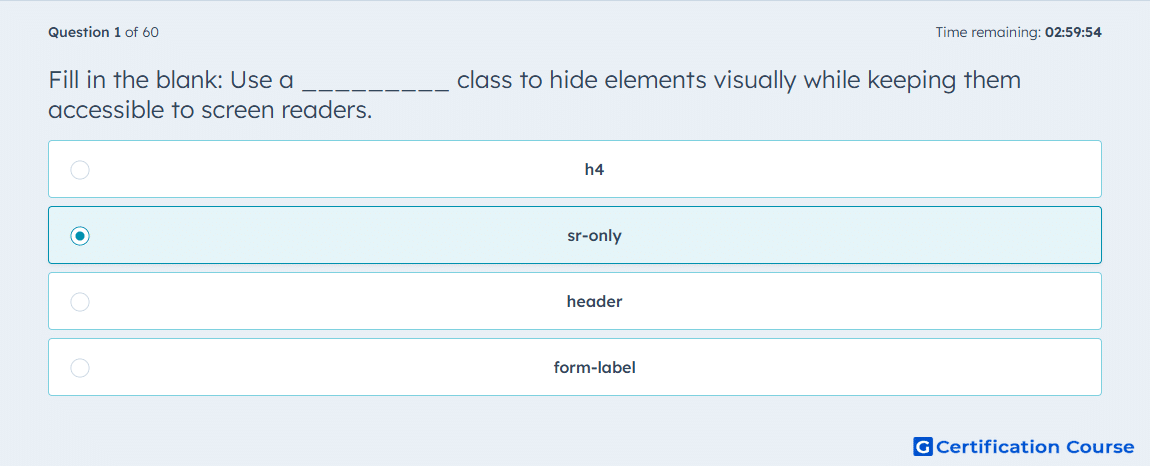
Question: Fill in the blank: Use a _________ class to hide elements visually while keeping them accessible to screen readers.
- h4
- sr-only
- header
- form-label
Explanation
This refers to a visually hidden utility class that keeps descriptive content available to screen readers while removing it from the visible layout. In HubSpot documentation, the same accessibility pattern is shown with the screen-reader-text class rather than plain CSS that fully removes content from the accessibility tree. That approach is used for hidden labels, extra context, and skip links that still need to be announced by assistive technology. The key distinction is that the content stays accessible, which is why a screen-reader-only utility is the correct mechanism. HubSpot Developers
Why the other options are incorrect
h4 is a heading element, so it defines document structure rather than creating visually hidden but accessible text. HubSpot Developers+1
header is a semantic page region, so it identifies a section of the page instead of hiding text for assistive technology. HubSpot Developers
form-label is not the accessibility utility HubSpot documents for visually hidden text that remains available to assistive technology. HubSpot Developers
Source for verification
https://developers.hubspot.com/docs/cms/best-practices/improve-existing-sites/accessibility
https://developers.hubspot.com/blog/coding-for-marketers-your-guide-to-coding-on-hubspots-cms-hub
The answer(s) to the question is highlighted in the BOLD text above. You can also find more questions and answers related to the exams on the "HubSpot CMS for Developers II" page.