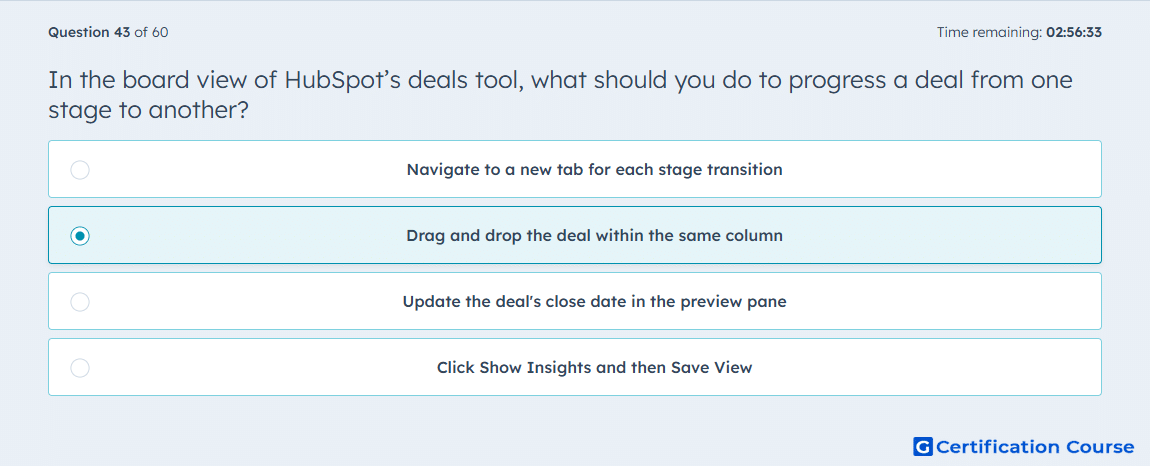
Question: In the board view of HubSpot’s deals tool, what should you do to progress a deal from one stage to another?
- Navigate to a new tab for each stage transition
- Drag and drop the deal within the same column
- Update the deal's close date in the preview pane
- Click Show Insights and then Save View
Explanation
In the board view of HubSpot’s deals tool, deals are moved through stages by dragging and dropping them into the appropriate column. Each column represents a different deal stage, and moving a deal updates its stage in the pipeline automatically. This visual workflow improves pipeline management and ensures accurate tracking of deal progression.
Why the other options are incorrect
Navigate to a new tab for each stage transition: Stage changes are done directly on the board, not via tabs.
Update the deal's close date in the preview pane: Editing the close date does not change the deal stage.
Click Show Insights and then Save View: Insights display data but do not move deals between stages.
Source for verification
HubSpot Deals Board View
The answer(s) to the question is highlighted in the BOLD text above. You can also find more questions and answers related to the exams on the "HubSpot Sales Hub Software" page.