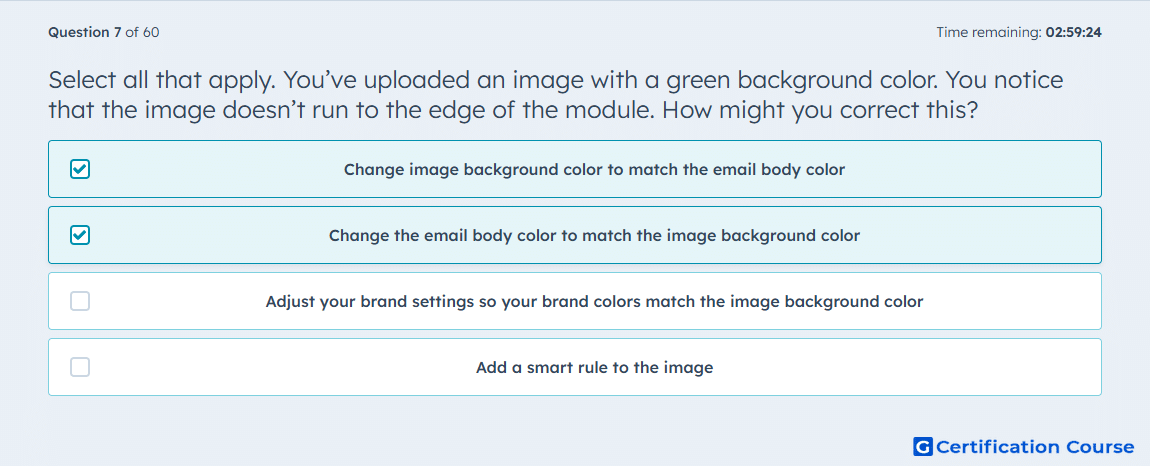
Question: Select all that apply. You’ve uploaded an image with a green background color. You notice that the image doesn’t run to the edge of the module. How might you correct this?
- Change image background color to match the email body color
- Change the email body color to match the image background color
- Adjust your brand settings so your brand colors match the image background color
- Add a smart rule to the image
Explanation
A visible edge usually appears when the image background and the email area behind it use different colors. In HubSpot, Body color controls the background color of the email body. Matching the image’s background color with the surrounding email body removes the visible mismatch. This is a design adjustment within the email editor, not a segmentation or personalization change.
Why the other options are incorrect
Brand settings do not directly correct a mismatch inside an individual email module.
Smart rule changes content based on contact criteria, not image spacing or background color alignment.
Source for verification
https://knowledge.hubspot.com/marketing-email/edit-marketing-email-content-and-design
https://knowledge.hubspot.com/website-pages/use-images-in-hubspot-content
The answer(s) to the question is highlighted in the BOLD text above. You can also find more questions and answers related to the exams on the "HubSpot Email Marketing Software" page.