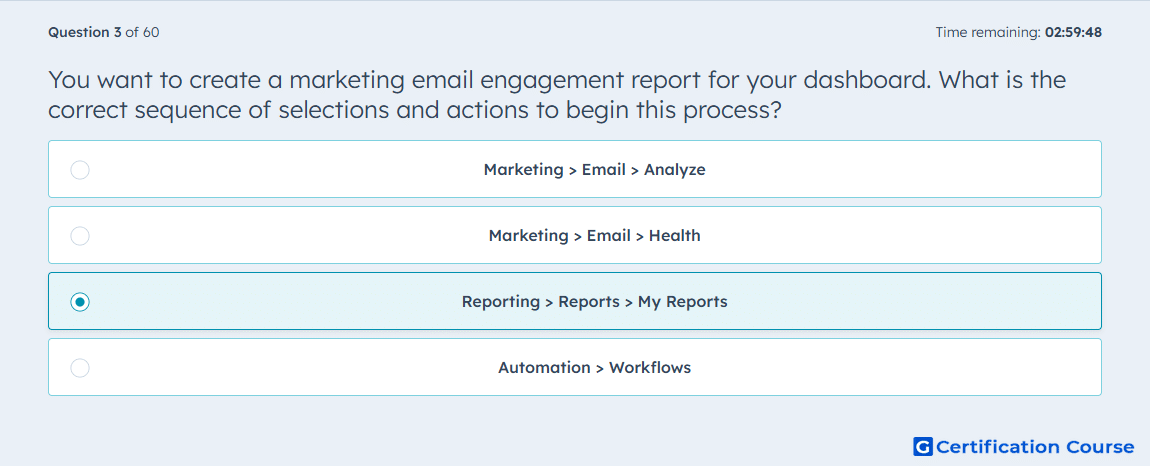
Question: You want to create a marketing email engagement report for your dashboard. What is the correct sequence of selections and actions to begin this process?
- Marketing > Email > Analyze
- Marketing > Email > Health
- Reporting > Reports > My Reports
- Automation > Workflows
Explanation
HubSpot report creation begins in the reports area because dashboard-ready reporting assets are managed from the reporting workspace. The My Reports view is used to access report records and start building or selecting reports that can be saved to a dashboard. A marketing email engagement report relies on reporting tools rather than the email performance tabs inside the email tool. This path keeps the report connected to HubSpot’s dashboards instead of limiting analysis to a single email analytics screen.
Why the other options are incorrect
Marketing > Email > Analyze is used for reviewing email performance, not starting a dashboard report.
Marketing > Email > Health focuses on email health metrics, not report creation.
Automation > Workflows is used to build automated processes, not marketing email engagement reports.
Source for verification
https://knowledge.hubspot.com/reports/use-marketing-reports-in-the-marketing-analytics-suite
https://knowledge.hubspot.com/reports/create-custom-reports
The answer(s) to the question is highlighted in the BOLD text above. You can also find more questions and answers related to the exams on the "HubSpot Email Marketing Software" page.